
How Nudge works, start to done
Sign in with your phone number and a 6-digit code. No password, no email. Then it’s seven steps, and most of them are a swipe.
- 1. Add a task your way
- 2. Add the people on it
- 3. Work through your deck
- 4. Nudge when it slips
- 5. Talk on the task
- 6. Done means done
- 7. Stay in the loop, quietly
Step 1
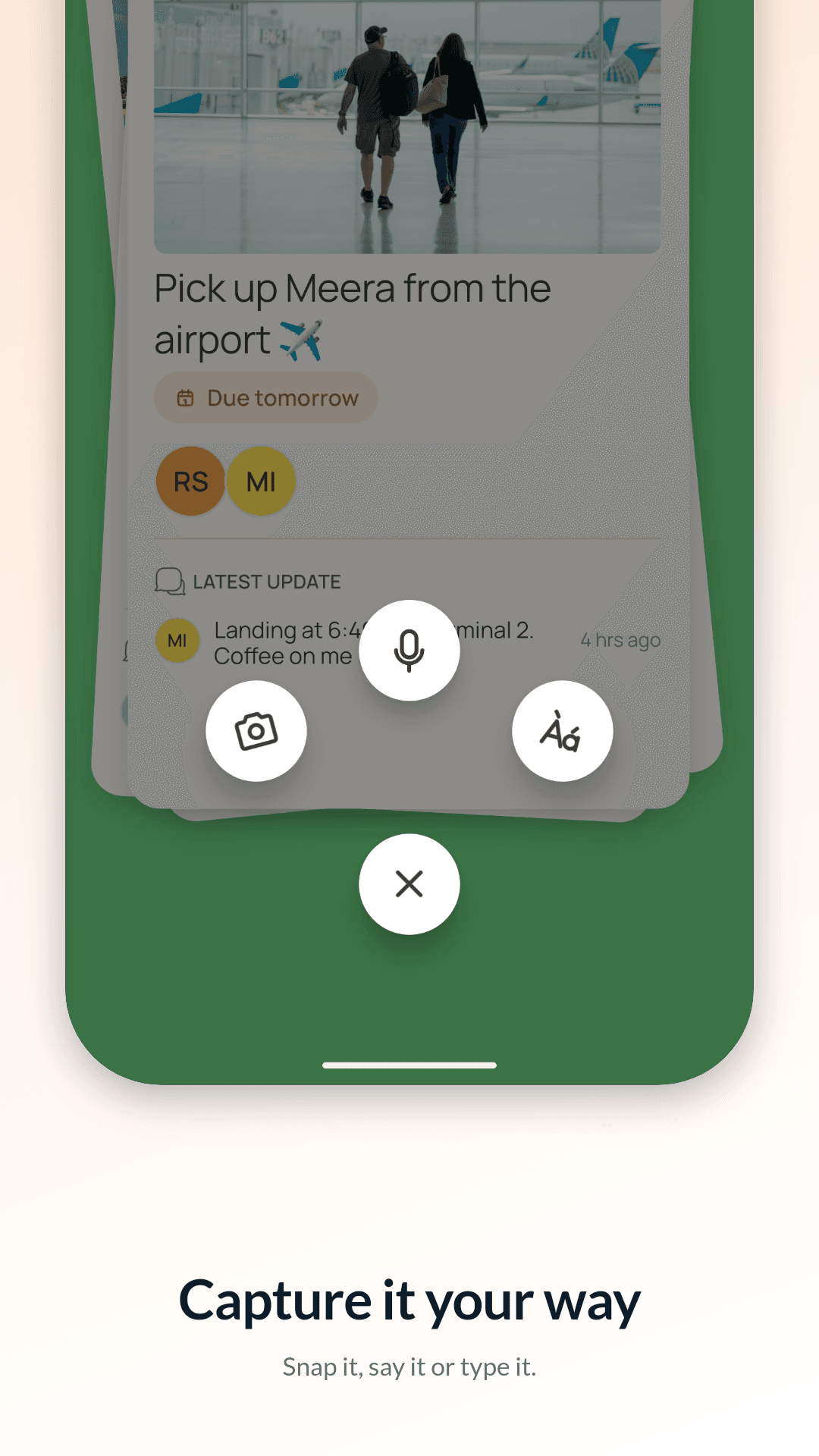
Add a task your way
Tap the camera, the mic or the keyboard under your deck. Or share a link, photo or video from any other app, and it becomes a task.
- Take a photo or pick one from your gallery
- Record a voice note of up to five minutes
- Add a due date and time, tags and high priority if it’s urgent
Step 2
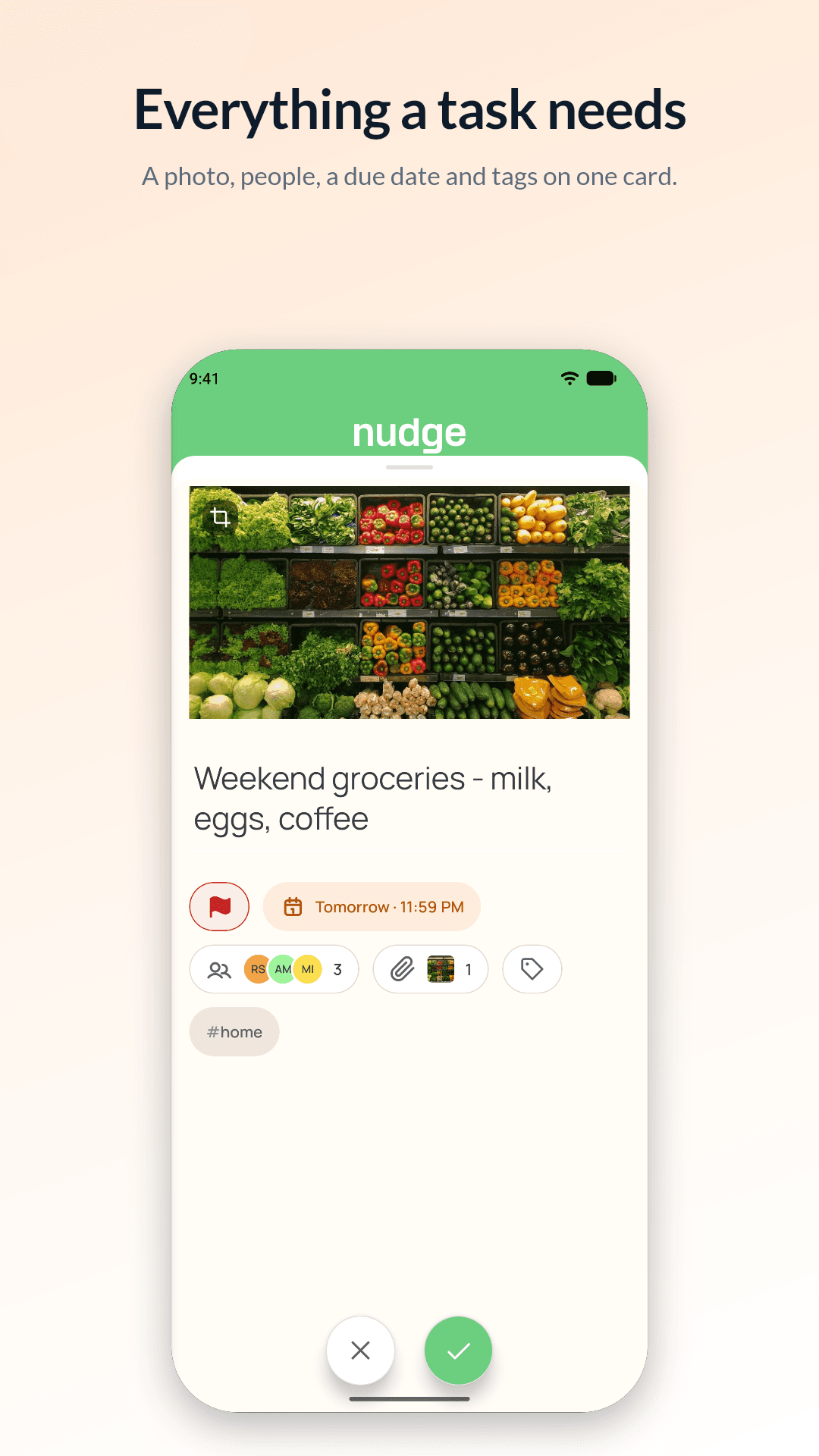
Add the people on it
Pick them from your contacts. People in your nudge circle are added straight away. Anyone else gets an invite in the app, or a text with a link if they’re not on Nudge yet.
- Contacts are read only when you open the picker
- Only the numbers you choose leave your phone
- Hand the task to whoever is doing it, and the crown moves to them
Step 3
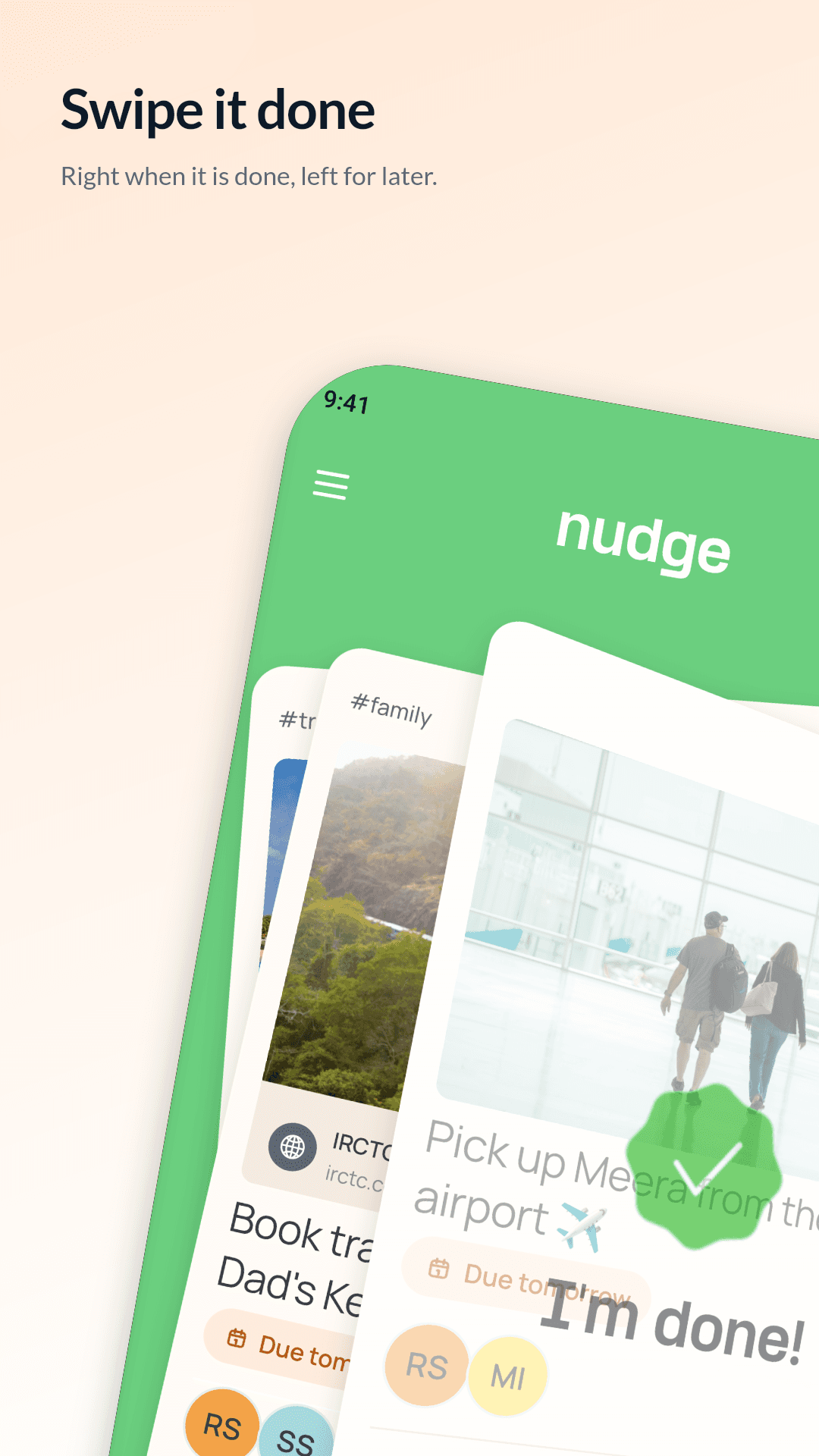
Work through your deck
Your tasks sit in a deck, with the one that needs you on top. Swipe the top card: right for done, left for later, up to nudge, down to archive.
- Swiped too soon? Undo within 20 seconds
- A swipe that isn’t yours to make springs back
- High-priority tasks turn the deck coral
Step 4
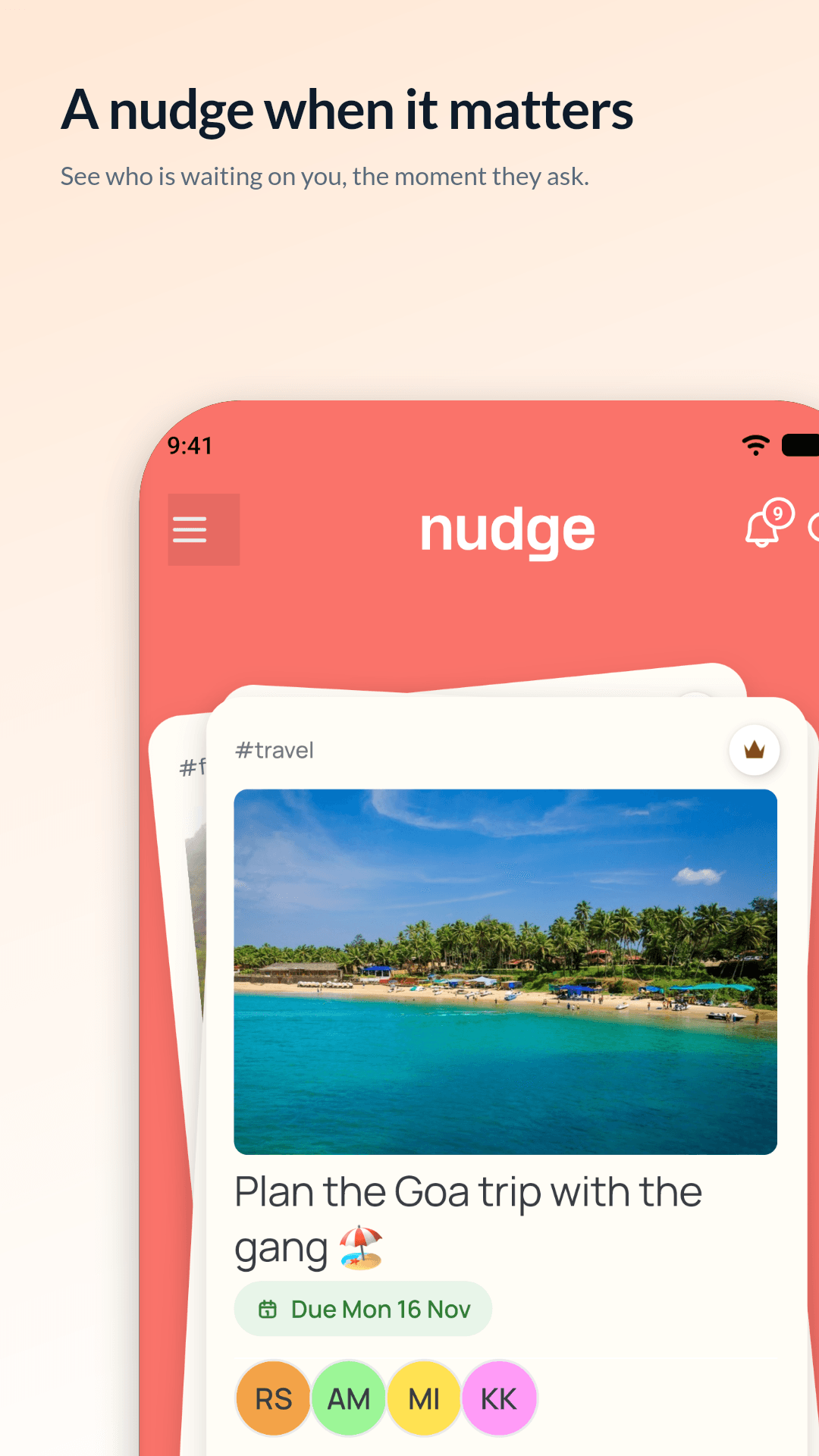
Nudge when it slips
Drag the card up and pick a tone: gentle, friendly, firm or urgent. They get a push in that tone, and the task jumps to the top of their deck.
- Anyone helping on a task can nudge the person holding it
- Sending a nudge needs a connection
Step 5
Talk on the task
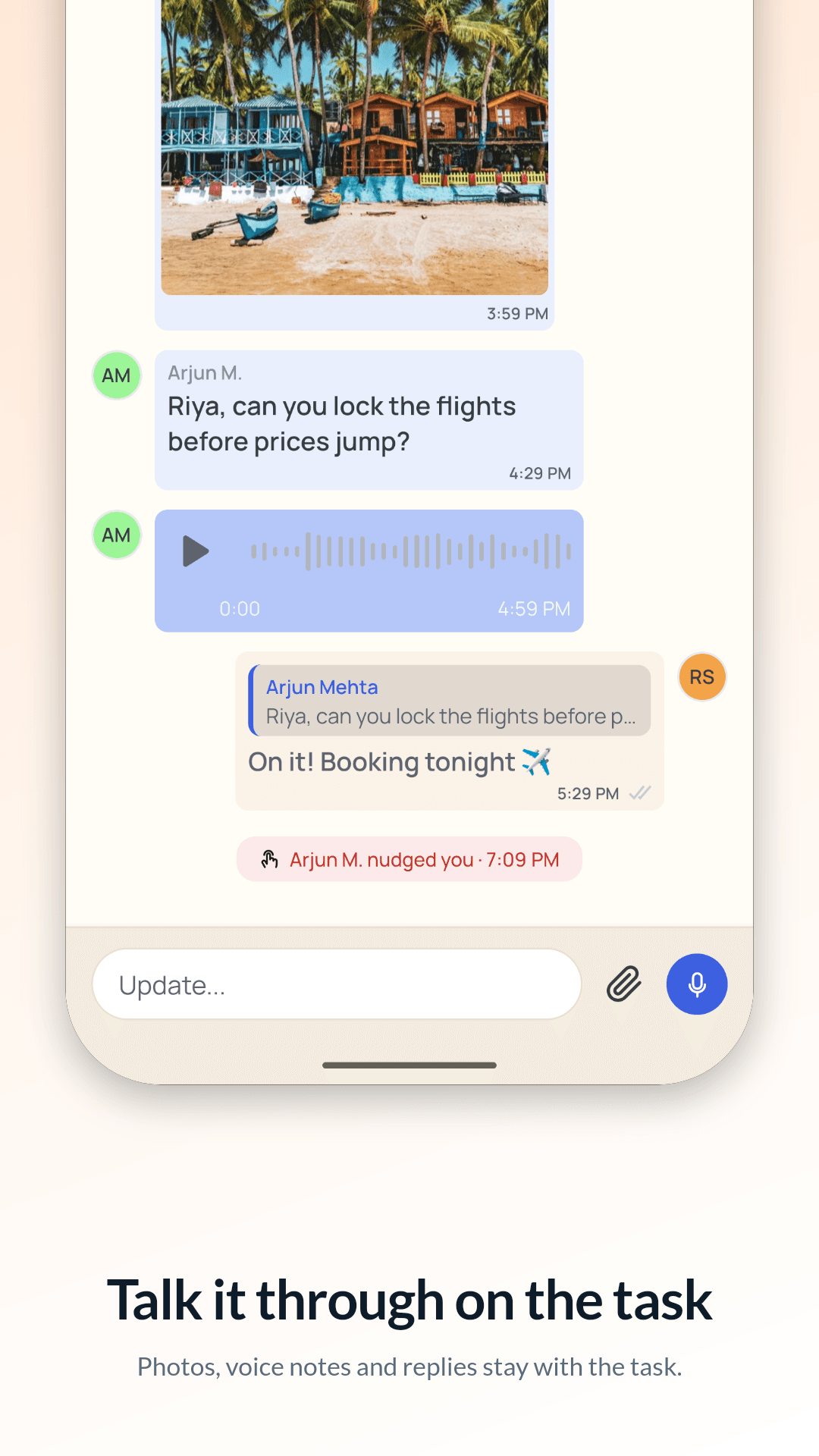
Every task has its own updates, like a small chat. Post a note, a photo or a voice note, and swipe a message to reply to it.
- Everyone on the task hears about new updates
- Files stay with the task, not lost in a group chat
Step 6
Done means done
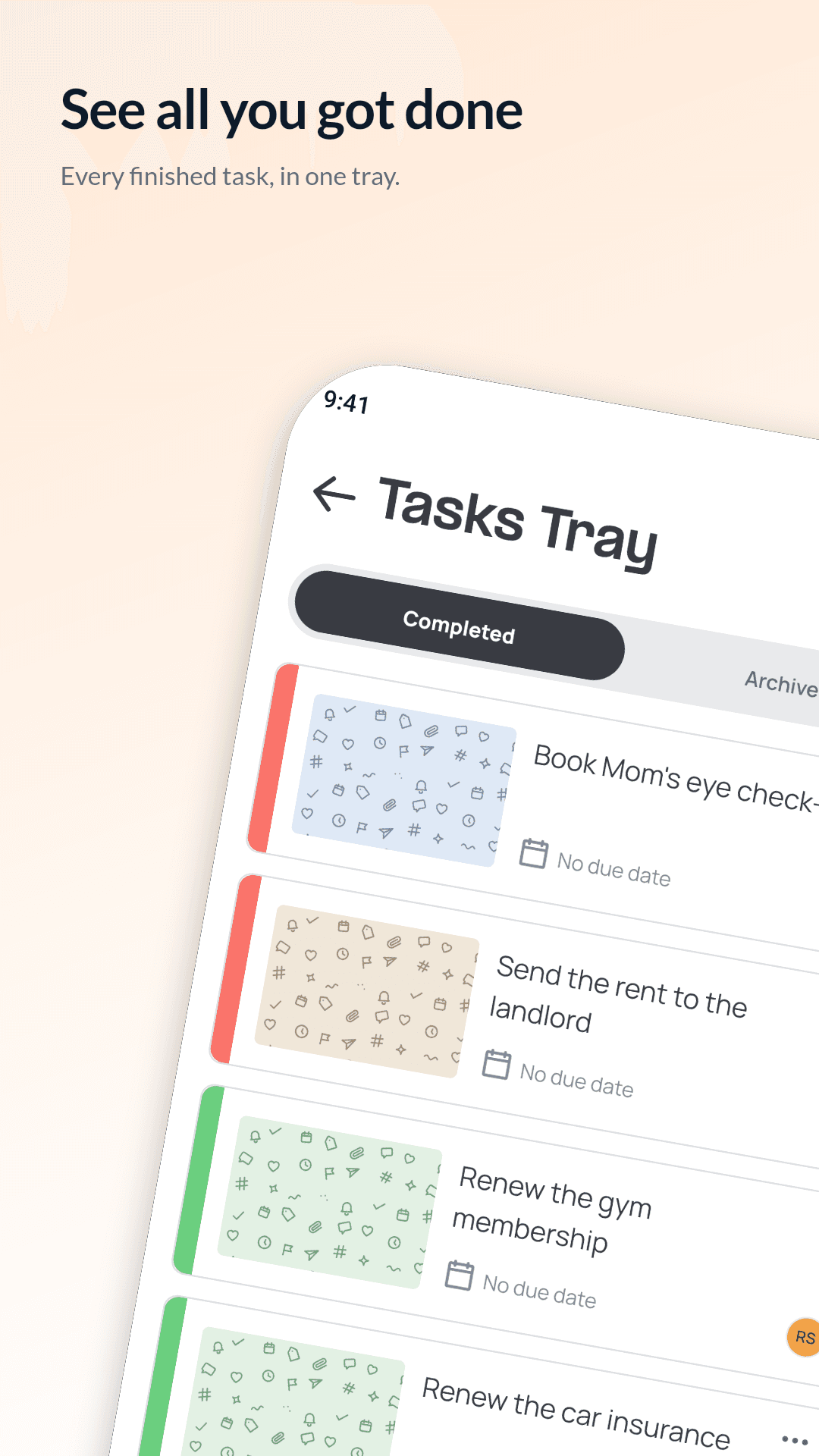
When the owner swipes right, the person who asked gets a look. They close it, or send it back with a little more to do.
- Finished tasks move to your history
- Whoever made a task can reopen it from there
Step 7
Stay in the loop, quietly
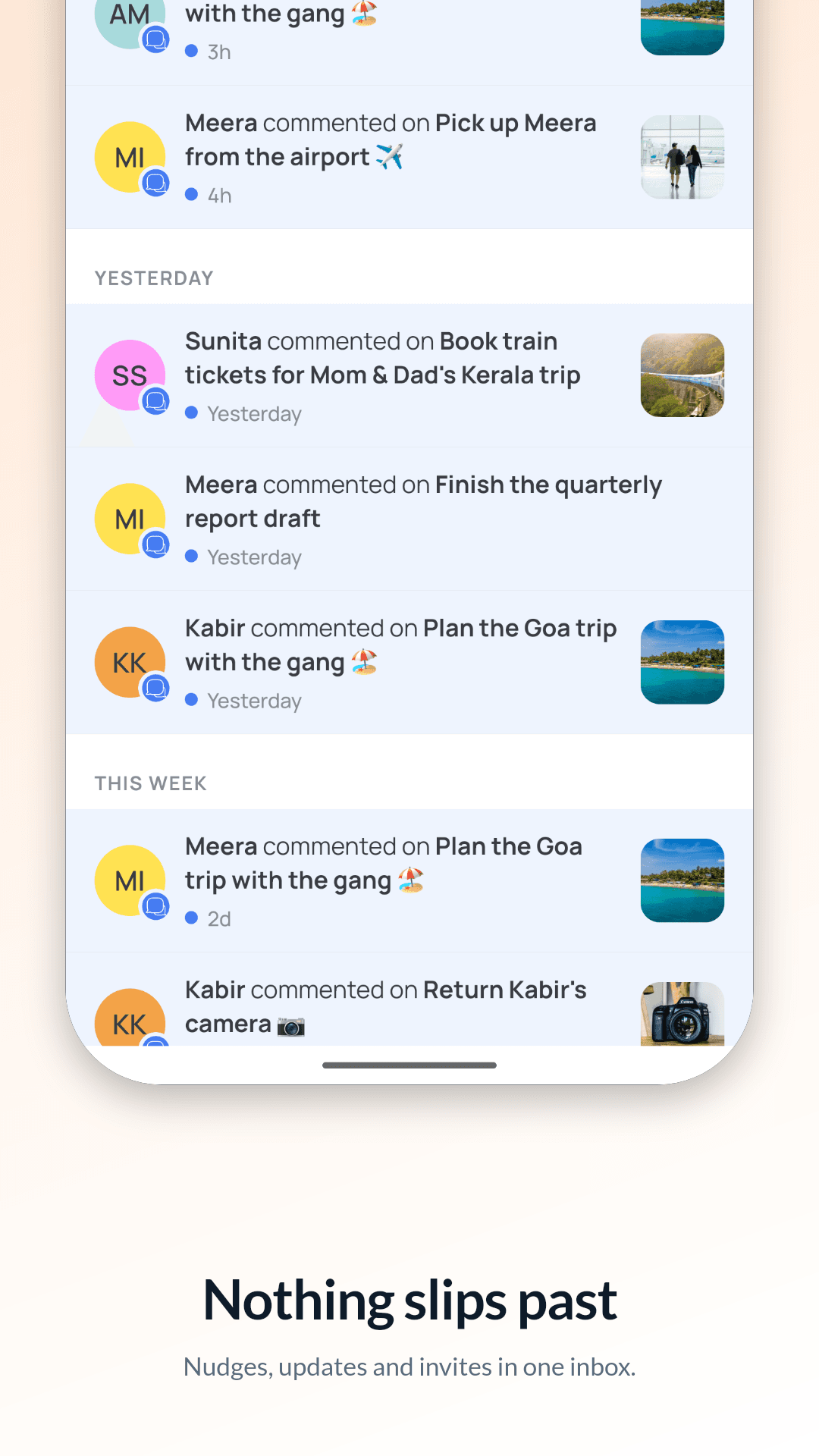
One inbox holds everything that happened, with what needs you pinned on top. Due reminders ring before a task is due, and quiet hours keep the night silent.
- Reminders 12 hours, 1 hour and 15 minutes before, and at the due time
- Pushes wait until your quiet hours end
four directions, that’s it
The four swipes
If a swipe isn’t yours to make, the card springs back. Anything but a nudge can be undone for 20 seconds.
Done
Your own task is closed. One handed to you tells the creator “I’m done”.
Creator and owner
Later
Back of your deck. Only your order changes.
Everyone
Nudge
Pick a tone, and the task jumps to the top of their deck.
Nudgers, and a creator who handed it over
Archive
Put away for everyone on the task.
Creator
everyone has a part
Three roles on every task
Whoever writes a task starts as both creator and owner. Hand it to someone and they take the crown.
Creator
Wrote the task. Edits it, adds and removes people, hands it over and closes it. Stays in charge, even after a hand-over.
Owner
The one doing it, wearing the crown. Swipes right to say “I’m done”, and the creator takes a look.
Nudger
Following along. Posts updates and nudges the owner when it slips.